
Our design system utilizes column grids to establish structured layouts that organize content, components, and UI elements into a cohesive hierarchy. This framework ensures consistent alignment and distribution across all applications. By acting as the foundation for responsive behavior, the grid enables seamless adaptation across various screen sizes and resolutions, ultimately enhancing usability and the overall user experience.
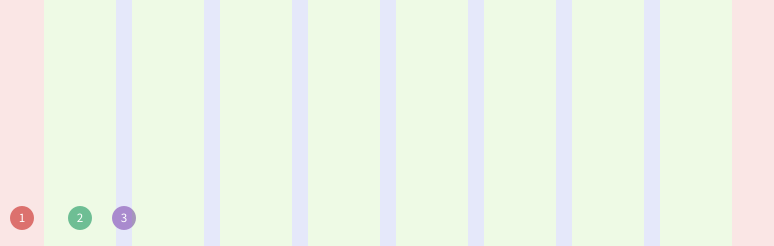
Explore the Grid
Visit our interactive Grid Playground(opens in a new tab) to see our grid system in action.
Copy link to headline:Grid
Our grid system is basically build out of the following three main building blocks:
- Columns
The available width (either the whole screen or only a specific section / element) is divided into up to 12 columns. Each element inside the grid can then define how many columns it should span. The grid will then take care of positioning the elements accordingly and wrap them into new rows if they exceed the available columns.
The maximum number of available columns per row will adapt dynamically based on the screen / container breakpoint. This adaptive approach ensures out-of-the-box responsive behavior of the elements and a consistent width of elements across different screen sizes, pages and applications. See the breakpoints below for an overview of the available breakpoints and their maximum grid columns.
- Gutters / Gaps
Elements placed inside the grid are automatically spaced with pre-defined gutters / gaps.
- Margins
Optionally, unified margins can be placed around the grid which is particularly useful when applied to the whole page content so every page has consistent and dynamic spacing around the page content so it does not "stick" to the screen borders.
Copy link to headline:Usage
To create a new grid container, simply add the onyx-grid CSS class to any element. We support the following CSS classes to define how many columns an element should span. Multiple classes can be combined to achieve optimized responsiveness.
- Specific number of columns
Use the
onyx-grid-span-<number>CSS class to define that an element should always span exactly<number>of columns. Replace<number>with the actual number of columns: - Full width
To make an element full width (span all available columns), regardless of the current breakpoint, use the
onyx-grid-span-fullclass: - Specific breakpoints
It might sometimes be useful to change the number of columns for specific breakpoints for optimized responsive behavior. To achieve this, use the
onyx-grid-<breakpoint>-span-<number>CSS class and replace<number>with the desired number of columns and<breakpoint>with the desired breakpoint. The element will then span<number>of columns for the given<breakpoint>and larger.Breakpoints specific grid spans are usually combined with one default
onyx-grid-span-<number>class. See the breakpoints below for an overview of the available breakpoints. - Custom container
Our grid system is build using CSS container queries(opens in a new tab) which means that each grid refers to its nearest container to evaluate the current breakpoint.
When using our OnyxPageLayout(opens in a new tab), OnyxAppLayout(opens in a new tab) or OnyxSidebar(opens in a new tab) component, the container is automatically defined.
You can define a custom container by setting the container-type(opens in a new tab) CSS property on any element. This is particularly useful when e.g. using the grid inside the OnyxModal(opens in a new tab) or custom components so the actual component width is used to determine the number of columns etc.
Copy link to headline:Grid margin
The outer grid margin is already applied by our OnyxPageLayout(opens in a new tab) component. If you still need to implement it manually, simply use the .onyx-grid-layout CSS class:
Copy link to headline:Customization
You can customize the grid in several ways as shown below. Simply set the corresponding CSS classes on the root element of your application.
- Max width
By default, components can take up the whole available screen width. Since content can be overwhelming for users with larger screens such as 2k and beyond, you can limit the overall grid content width of the application. Grid usages and components such as the OnyxNavBar or OnyxBottomBar will adapt automatically.
To limit the width, apply one of the following options to your root application element:
noneMax. widthnoneCSS classnone (default)mdMax. width1440pxCSS classonyx-grid-max-mdlgMax. width1920pxCSS classonyx-grid-max-lg - Alignment
The grid alignment is only relevant when you have set a max width (see above). In this case you can decide whether the grid should be left or center aligned when the users screens exceeds the max width:
leftAlignmentleftCSS classnone (default)centerAlignmentcenterCSS classonyx-grid-center - Max columns
The grid is limited to 12 columns by default. To make use of extra space available on larger screens such as 4k monitors, you can optionally increase the maximum number of columns to either 16 or 20. Note that the extra columns are only available for the
lgbreakpoint and above.12Max. columns12CSS classnone (default)16Max. columns16CSS classonyx-grid-lg-1620Max. columns20CSS classonyx-grid-xl-20
Copy link to headline:Breakpoints
Breakpoints are specific widths where the page or component layout automatically changes into a different layout so its stays readable on a smaller or larger device. Our design system defines the following breakpoints:
Our smallest supported breakpoints is 320px which means that we do not guarantee optimized layouts for smaller screens.
Copy link to headline:Usage
When using custom layouts or components, you can use our SCSS mixins to easily apply styles when either the whole screen or an container / element width matches a specific min/max breakpoint:
- Media queries
To apply styles only when the whole screen has a specific min or max width, use our
breakpoints.screen()SCSS mixin that applies CSS media queries(opens in a new tab). - Container queries
To apply styles only when a single element has a specific min or max width, use our
breakpoints.container()SCSS mixin that applies CSS container queries(opens in a new tab). Before applying the container queries, ensure the add the container-type(opens in a new tab) CSS property.The breakpoint is considered inclusively so when defining min and max for the same breakpoint, make sure to add an offset for one of them.
- Usage in code
To access the breakpoints programmatically (e.g. inside a ResizeObserver(opens in a new tab)), use the
ONYX_BREAKPOINTSobject: